
Questions? We Are Here To Help
Explore on-demand video walkthroughs covering everything you need to know to dispatch, track leads, message clients, and close jobs with Dispatch Pro.
Dispatch Pro Video Walkthroughs
Click any video card to launch the interactive high-definition walkthrough training.
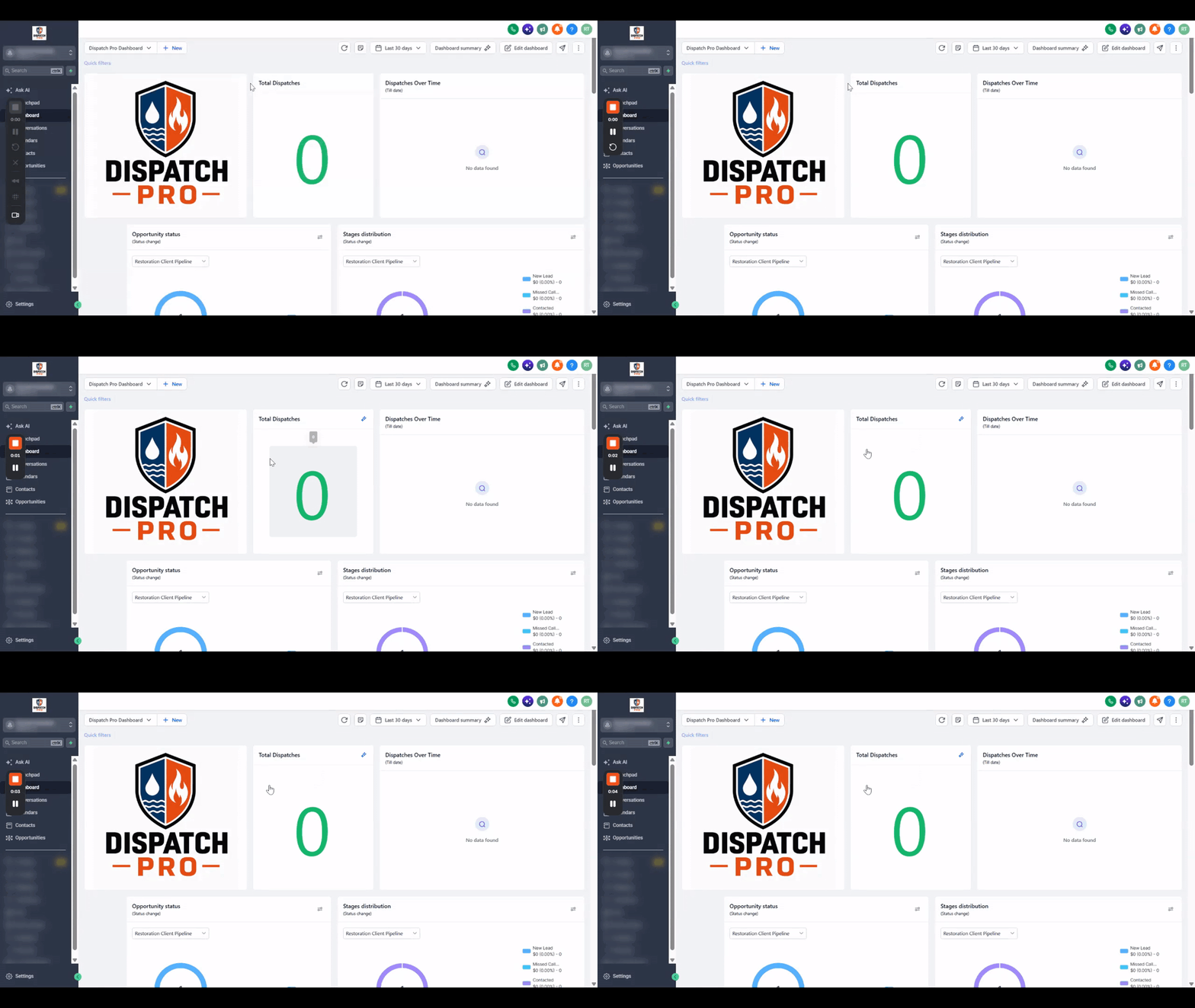
Dispatch Pro- CRM Dashboard
Navigating your Dispatch Pro dashboards: tracking total dispatches, pipeline conversion velocity, answered vs. missed calls, talk time, and real-time response metrics.
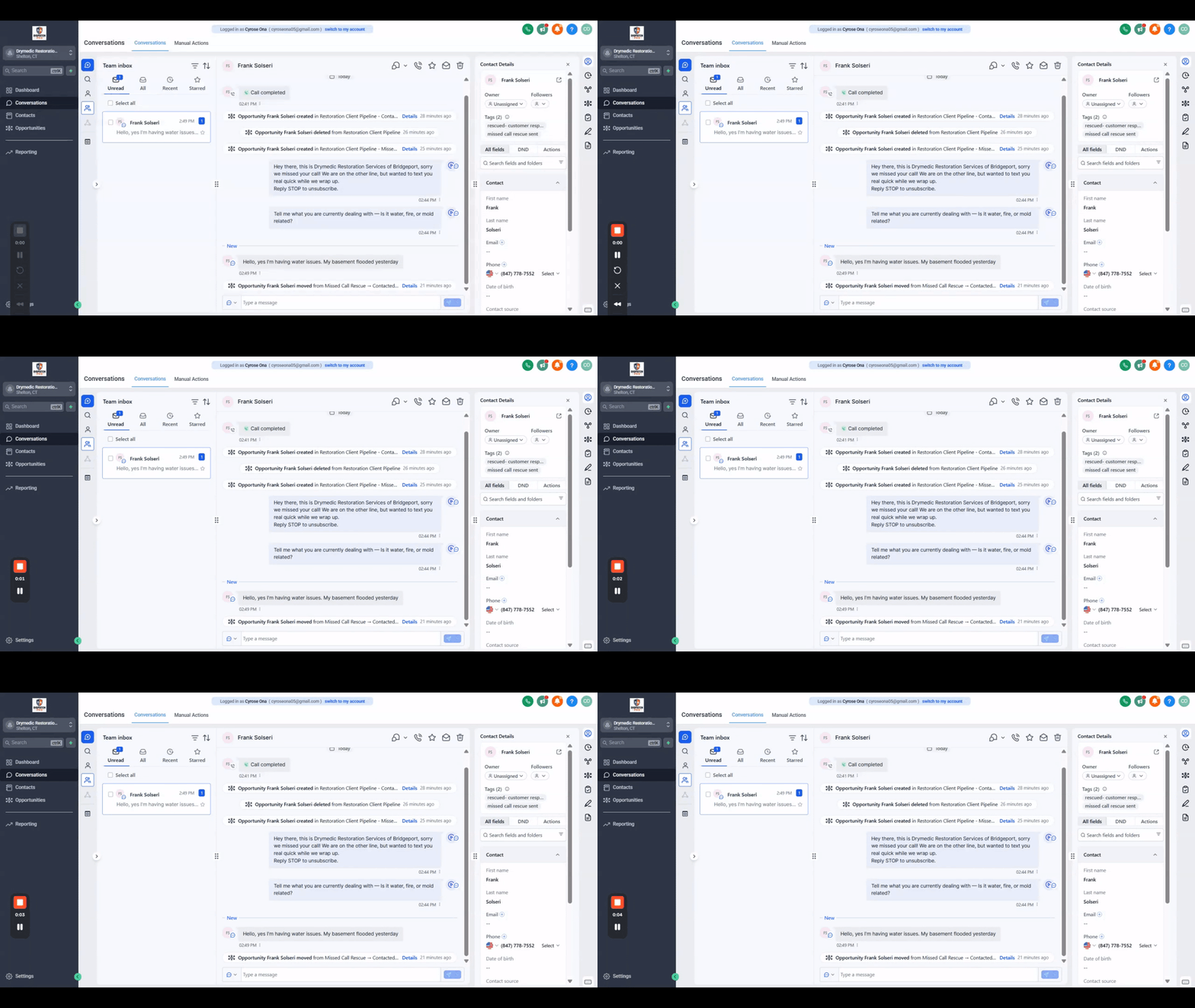
Dispatch Pro- Conversations Section CRM
Managing customer communications from the unified inbox: SMS text replies, missed-call text-back sequences, email threads, and scheduling messages to send later.
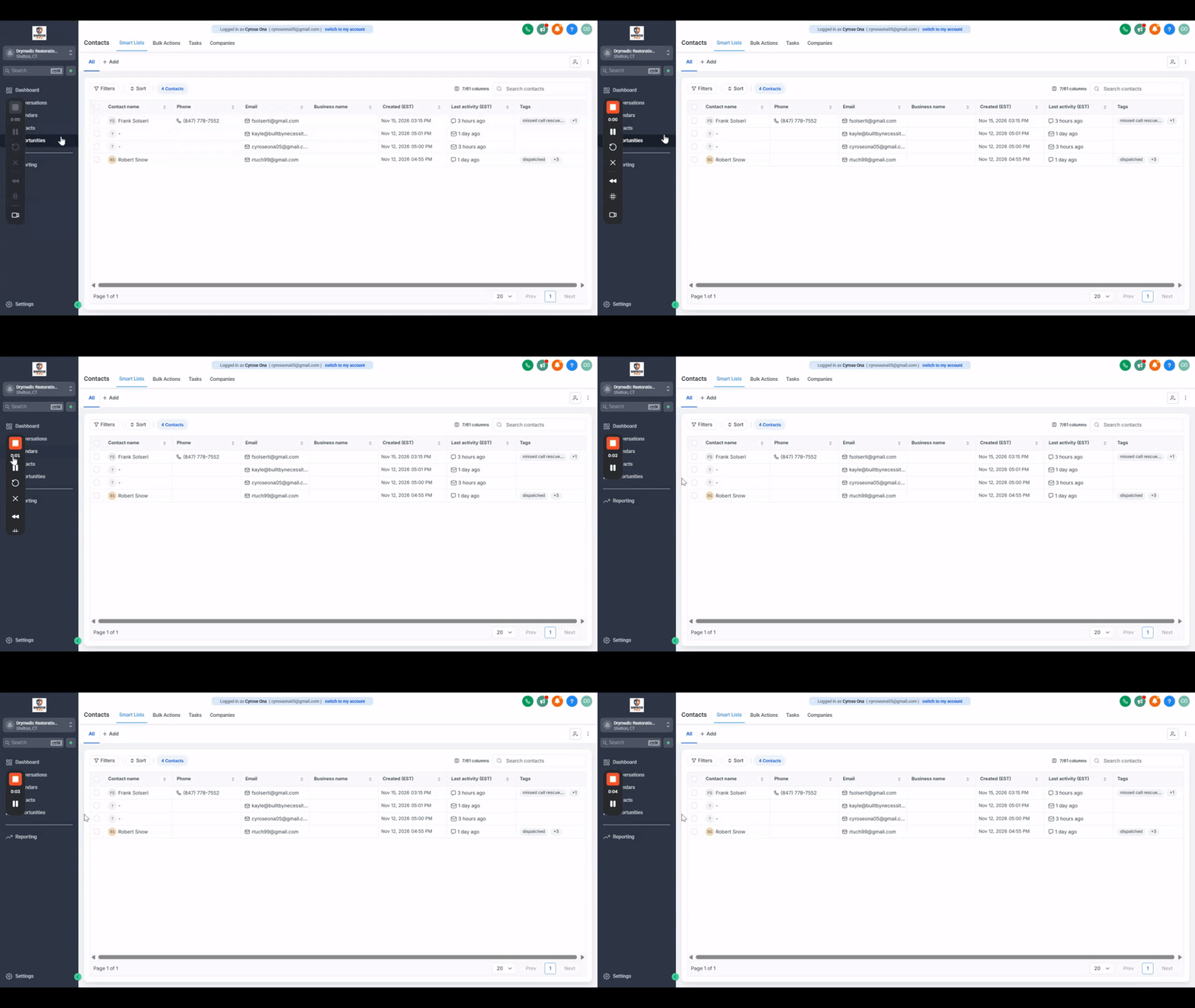
Dispatch Pro- Contacts Section CRM
Searching and managing your customer directory: auditing caller profiles, listening to full call recordings, updating homeowner details, tags, and service notes.
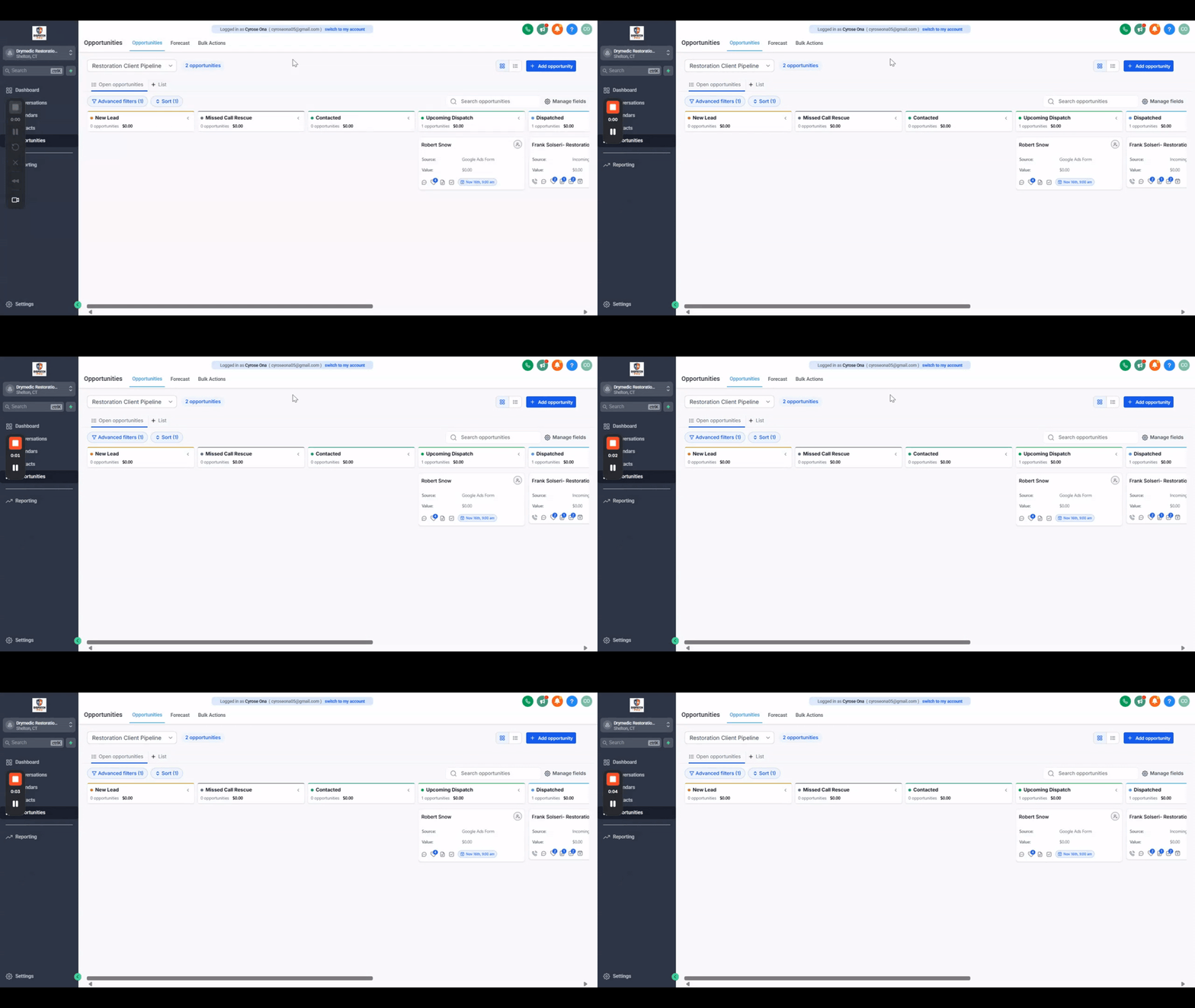
Dispatch Pro- Opportunities/Pipeline CRM
Mastering the Dispatch Pro Kanban pipeline: tracking leads from Call Handled and Emergency/Urgent to Estimate Scheduled, In Progress, and Closed Won.
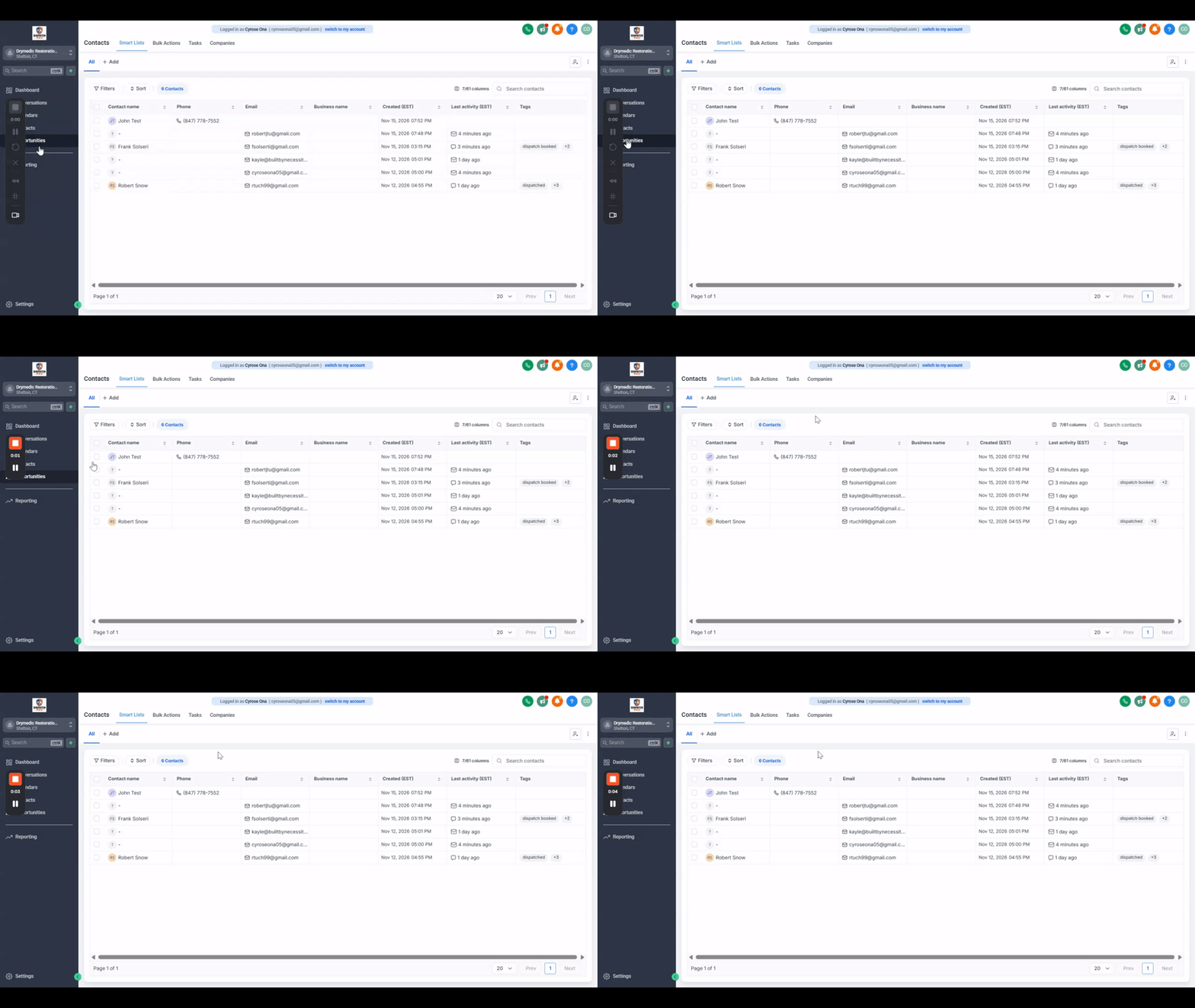
Scheduling Appointments in Desktop CRM
How to schedule on-site estimates, service visits, and technician appointments directly from your desktop calendar or customer opportunity records.
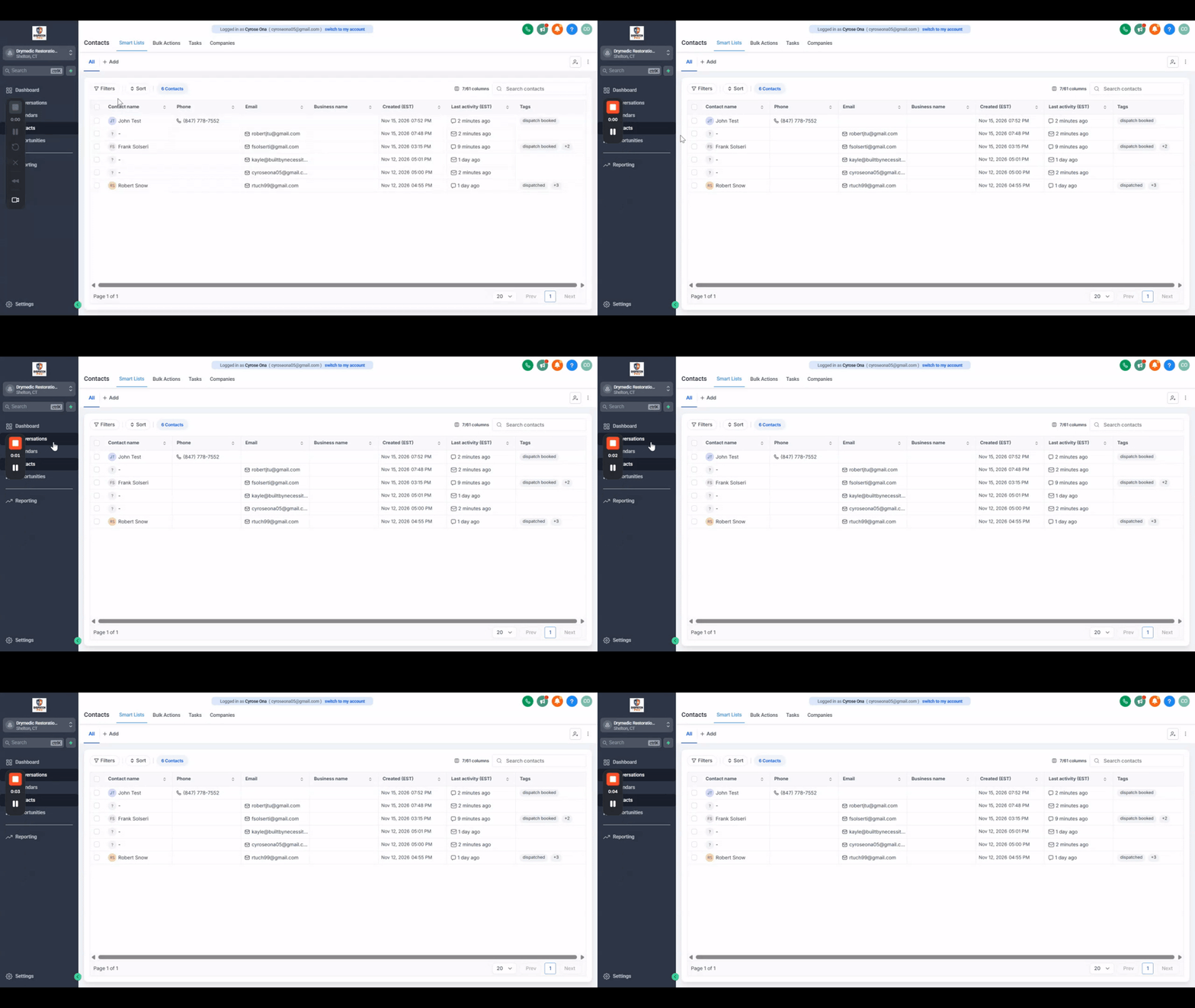
Mark Scheduled Visits as No-Show or Cancel in Desktop CRM
Handling cancellations, reschedules, and no-shows properly so your pipelines, technician schedules, and automated re-engagement texts trigger cleanly.
The 4 Core CRM Workspaces
Everything you need to capture inbound calls, track deals, message customers, and measure dispatch results.
Pipelines & Opportunities
Kanban stages from Call Handled and Urgent Emergency to Estimate Scheduled and Closed Won. Track deal values and conversion rates at a glance.
Contacts Section
Centralized directory of every caller. Audit homeowner profiles, listen to audio call recordings, manage tags, and launch 1-click calls or SMS.
Messages & Conversations
Unified omnichannel inbox for SMS, call histories, and emails. New lead texts appear at the top so you can respond and lock in appointments fast.
Dashboard & Reporting
Real-time dispatch metrics: answered vs. missed calls, call volume trends, funnel conversion percentages, and average talk time analytics.
Common CRM & Dispatch Questions
Quick answers to the workflows dispatchers, technicians, and trade business owners ask most often.
Every inbound lead flows through organized Kanban stages: 'Call Handled', 'Emergency / Urgent Priority', 'Estimate Scheduled', 'In Progress', and 'Closed Won'. Leads are automatically categorized based on caller urgency and booking details, so office staff and dispatchers never have to manually sort through call logs.
Need Help Navigating A Specific Section?
Can't find the walkthrough you need or have a specific question about your Dispatch Pro configuration? Leave a message and our support team will record a custom Loom or reply with exact steps.